Google Vids: Turn Presentations and Documents into Videos with AI
Google Vids: Turn Your PPT and Documents into Videos
Creating a professional video usually requires several tools. You may need one application to create slides, another to record your voice, another to edit the video, and sometimes another tool to add music or animations.
Google Vids is designed to bring many of these tasks together in one place.
Google Vids is an AI-powered video creation application from Google Workspace. It can help users create, edit, collaborate on, and share videos. One of its useful features is the ability to turn existing presentation content into video scenes. With eligible Gemini features, you can also use documents and other files as input when creating a video draft.
For people who already create presentations, training materials, tutorials, business documents, or educational content, this can be a useful way to transform existing content into a more engaging video format.
What Is Google Vids?
Google Vids is a browser-based video creation tool available through Google Workspace.
Instead of starting every video project from an empty timeline, you can begin with existing content, templates, recordings, or AI-generated ideas.
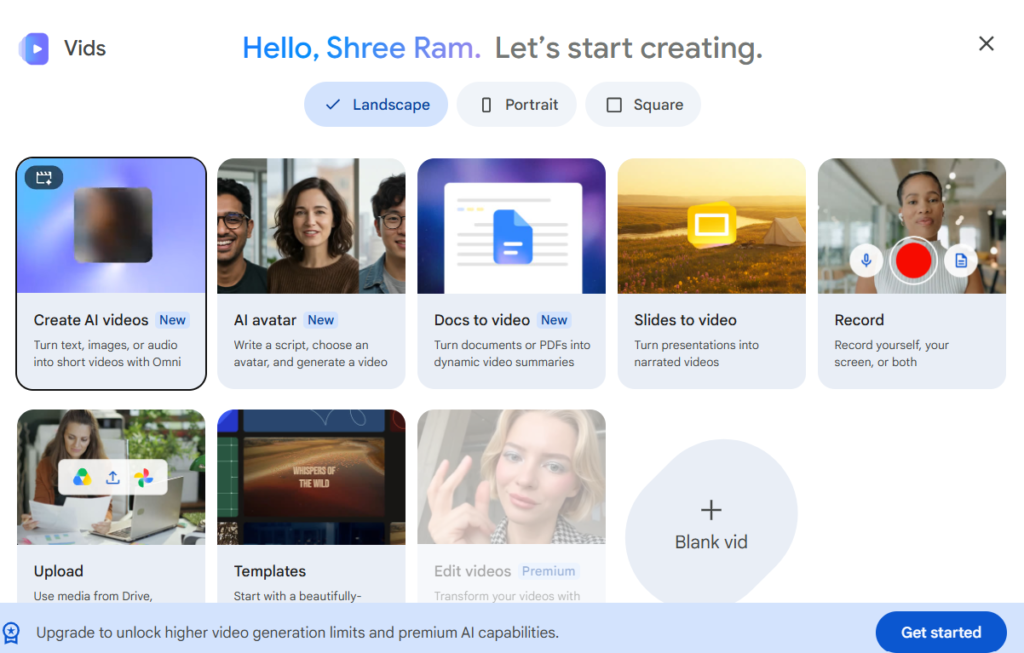
Google Vids provides several ways to start a project, including:
- Creating a video with AI
- Importing Google Slides
- Uploading existing content
- Using templates
- Recording your screen
- Recording yourself
- Creating a video from scratch
Google also provides Gemini-powered features in Vids that can help generate scripts, scenes, media suggestions, and voiceovers, depending on account eligibility and feature availability.
Convert PPT or Google Slides to Video
One of the most interesting features is the ability to convert a presentation into a video.
If you already have a presentation, you don’t necessarily need to recreate all the content manually in a video editor.
Google Vids can import Google Slides presentations, with each slide becoming a scene in the video. Speaker notes can also be imported as the script for the corresponding scene.
The basic process is simple:
- Open Google Slides or Google Vids.
- Select the presentation you want to use.
- Choose the option to convert or import the slides.
- Select the slides you want.
- Import them into Google Vids.
- Review the generated scenes.
- Add or edit scripts and voiceovers.
- Add music, animations, or other media.
- Preview the video.
- Make the final adjustments and export it.
This can be particularly useful for training videos, presentations, tutorials, company introductions, educational content, and YouTube videos.
Can Google Vids Convert a Document into a Video?
This is where AI makes the workflow more interesting.
Google Vids’ Help me create feature allows you to provide a prompt and attach relevant files from Google Drive. Google says you can use files such as PDFs and Slides as supporting material when creating a video draft. Gemini can then generate a suggested outline, scenes, text, media suggestions, a script, and voiceover.
For example, imagine you have a document called:
“Employee Onboarding Guide”
Instead of manually copying the entire document into a video editor, you can provide the document as reference and ask Vids to create an onboarding video.
A prompt could be:
“Create a 5-minute beginner-friendly onboarding video based on this document. Divide it into clear sections and use a professional but friendly tone.”
The resulting draft can then be reviewed and edited.
This is not simply a one-click “convert any document to a finished video” process. The AI creates a starting point that you should review and customize before publishing.
How AI Helps Create the Video
The biggest advantage of Google Vids is that AI can help with more than just converting content.
With Help me create, Gemini can help plan the structure of a video. According to Google’s documentation, the generated draft can include an outline, suggested scenes, text, media, a script, and voiceover.
For example, you could provide a topic such as:
“Introduction to Moodle LMS for Beginners”
You could ask Google Vids to create a beginner-friendly training video.
The AI could help organize the content into scenes such as:
- What is Moodle?
- Moodle dashboard
- Creating a course
- Adding users
- Adding learning activities
- Managing assignments
- Final summary
You can then review each scene and make changes according to your requirements.
Add AI Voiceovers and Narration
A presentation becomes much more useful as a video when it includes narration.
Google Vids provides AI voiceover capabilities for eligible users. You can generate scripts, use AI voiceovers, or create your own narration.
For example, a slide showing a Moodle dashboard could have narration explaining what learners or administrators should look at on the screen.
You can also edit the generated script before using the voiceover. This is important because AI-generated content should always be reviewed for accuracy and tone.
Add Images, Videos, Music and Animations
Google Vids is not limited to static slides.
You can add different types of content to your scenes, including images, videos, music, recordings, and other media. You can also use templates and customize the scenes according to your requirements.
This means a normal PowerPoint presentation can potentially become much more engaging after it is converted into a video.
For example:
PPT:
Text + screenshots
Video:
Text + screenshots + narration + animations + background music + additional video clips
This can make the content easier to consume, particularly for online learning and internal training.
Who Can Use Google Vids?
Google Vids can be useful for many different types of users.
Teachers and Trainers
Teachers can turn lesson presentations into narrated educational videos.
Businesses
Companies can create employee training, onboarding, product introductions, and internal communication videos.
Content Creators
Bloggers and YouTubers can transform existing presentations and educational material into video content.
Developers and Technical Teams
Technical documentation and presentations can be converted into walkthrough-style videos.
Marketing Teams
Marketing presentations can be transformed into short promotional or informational videos.
What Are the Limitations?
Google Vids is useful, but it is important to understand that it does not completely replace human editing.
AI-generated scripts and scenes should be reviewed before publishing. Google itself notes that Gemini features can sometimes produce inaccurate or inappropriate suggestions.
Feature availability also depends on your Google account and Workspace plan. Some Gemini features require an eligible Google Workspace or Google AI plan.
Google currently documents a maximum video duration of 30 minutes for Vids, while specific conversion workflows can have additional limits. For example, Google documents different slide-import limits depending on whether AI functionality is being used.
Final Thoughts
Google Vids makes the process of creating videos from existing content much easier. Instead of starting with a blank video editor, you can begin with a presentation, document, idea, recording, or template.
The PPT-to-video workflow is particularly useful for people who already have presentations and want to add narration and other video elements. The AI-powered workflow can also help turn reference documents into a structured video draft.
However, the best results still come from treating AI as a creative assistant rather than a completely automatic video producer. Review the generated script, check factual information, adjust the scenes, and add your own expertise before publishing.
For educators, businesses, trainers, developers, and content creators, Google Vids offers an interesting way to reuse existing content and turn it into video without having to learn a complicated professional video-editing application.
In simple words: if you already have the content, Google Vids can help you take that content one step further and turn it into a video.
Learn more about Google Vids – Official Google Workspace documentation
Frequently Asked Questions
Can Google Vids convert PowerPoint to video?
Google Vids can import presentations into video scenes. Google specifically documents Google Slides-to-Vids conversion; PowerPoint files may need to be opened or converted through Google Slides first.
Can Google Vids create a video from a document?
With eligible Gemini features, you can attach relevant documents as references when using Help me create. Gemini can use that content to generate a video outline, scenes, script, and voiceover.
Does Google Vids automatically create voiceovers?
Eligible AI workflows can generate voiceovers, and you can also edit the script or provide your own narration.
Is Google Vids free?
Basic Vids availability and Gemini-powered features depend on your Google account and Workspace/AI plan. Feature availability can vary by account and organization. But still slides to video or document is video is under it’s free plan as of now.