
Moodle 5.3 Boost Theme Improvements: Light Mode, Dark Mode and More
Moodle continues to evolve, and Moodle 5.3 brings several changes to the way learners, teachers, and administrators interact with the platform. One of the most noticeable updates is the refreshed user interface, along with improvements to the Boost theme.
If you use Moodle for online learning, employee training, or managing an educational institution, these changes are worth exploring. In this article, we will look at the new light and dark mode options, interface improvements, navigation changes, and what Moodle administrators should know before upgrading.
Watch the Moodle 5.3 Boost Theme Walkthrough
Want to see the changes in action? Watch this short video for a practical look at the Moodle 5.3 Boost theme improvements.
Moodle 5.3: What’s New?
Boost theme improvements, light mode, dark mode, and interface updates.
1. Dark Mode Comes to the Moodle Boost Theme
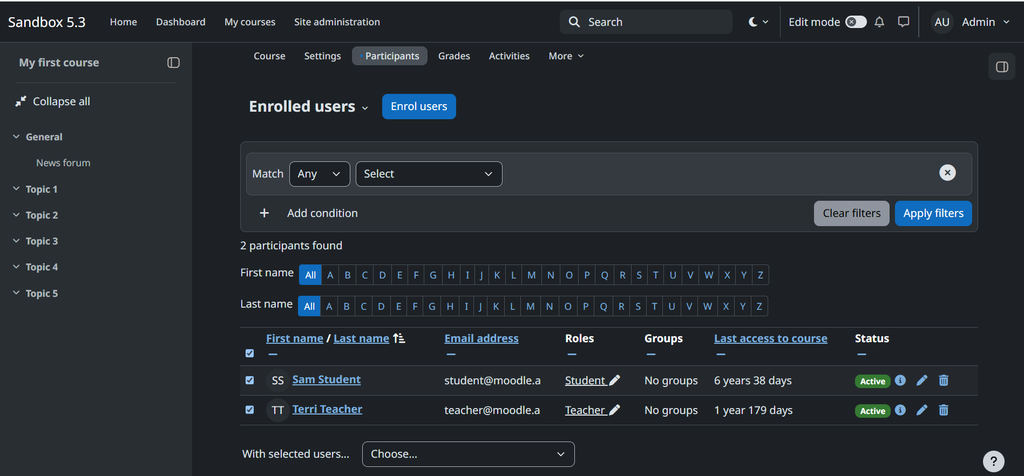
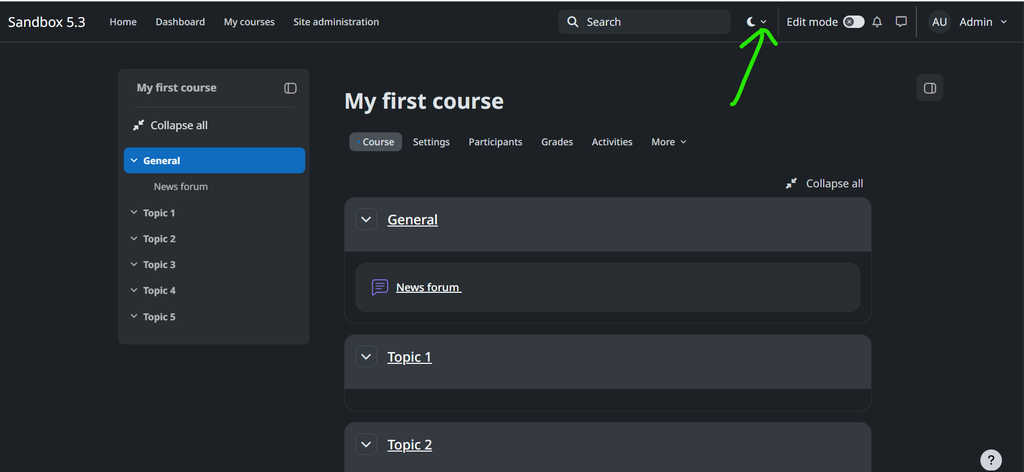
One of the most interesting visual updates in Moodle 5.3 is the introduction of dark mode in the Boost theme.
Previously, administrators who wanted a dark appearance often needed to explore third-party themes or custom styling. Moodle 5.3 introduces a built-in dark mode option for Boost, giving users another way to view their learning environment.
Dark mode uses a darker interface that may feel more comfortable for some users, particularly when studying or working in low-light environments.
How to enable dark mode in Moodle 5.3
Moodle administrators can enable the experimental feature by following these steps:
- Log in as a site administrator.
- Open Site administration.
- Navigate to Appearance → Themes → Boost.
- Open the Experimental settings tab.
- Enable the dark mode option and save the changes.
Once enabled, users can choose their preferred appearance from the navigation bar.
The available options are:
- Light: Uses the light interface.
- Dark: Uses the dark interface.
- System: Follows the appearance preference configured on the user’s device or browser.
The feature is experimental in Moodle 5.3, so administrators should test it on a staging site before enabling it on a production LMS.
2. Light Mode Remains Available
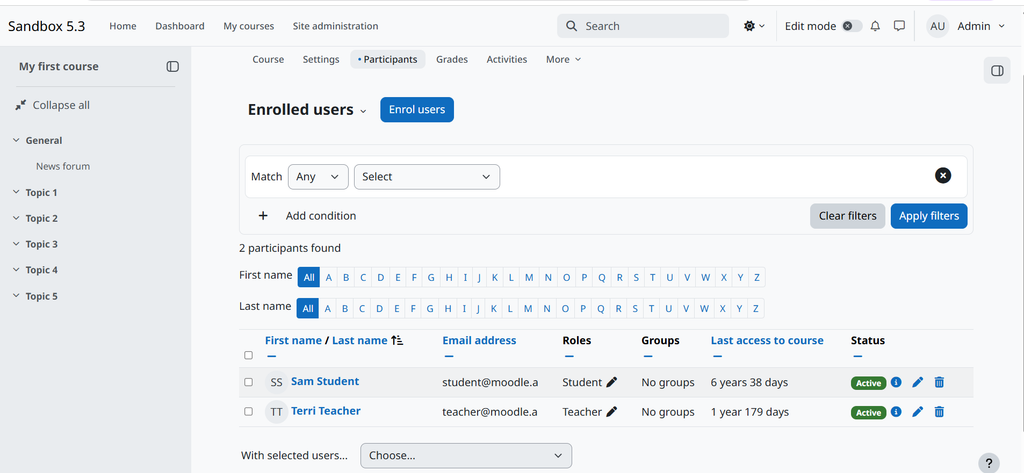
Dark mode is a new option, but users who prefer the traditional light interface can continue using it.
The light appearance works well for many learning environments, particularly where course content includes documents, images, quizzes, and other resources that learners access throughout the day.
Giving users a choice between light, dark, and system-based appearance makes the interface more flexible without requiring each learner to use a different theme.
For administrators, the important point is that the appearance preference is a user-facing option within Boost, rather than a requirement to install a separate theme.
3. A Refreshed Moodle User Interface

Moodle 5.3 includes several global interface improvements beyond dark mode. These updates affect the overall appearance and everyday navigation experience.
Some notable changes include:
- A more centrally aligned page layout.
- Updated typography for a consistent appearance.
- Improvements to the course index and block drawers.
- Updated notification and messaging icons.
- The global search field positioned within the top navigation.
- The user’s name displayed alongside their profile picture.
Individually, these changes may seem small. Together, they give Moodle a refreshed appearance and make important interface elements easier to identify.
4. Improvements to the Course Navigation Experience
Course navigation is an important part of any LMS. Learners need to move between course sections, activities, and resources without getting lost.
Moodle 5.3 continues to improve the way users navigate course content. The course index and block drawers form an important part of the updated layout, helping users access different areas of a course.
Another useful addition is linear course navigation. In courses using the Custom sections and Weekly sections formats, Previous and Next buttons can help learners move between activities and resources in sequence.
This can be particularly useful for structured training programmes where learners are expected to follow a particular order. Administrators can also configure the linear navigation settings for the supported course formats.
5. What Happened to the Classic Theme?
This is an important change for Moodle administrators planning an upgrade. It is retired from Moodle core from Moodle 5.3.
Moodle 5.3 removes the Classic theme from the core installation. As a result, sites using Classic switch to Boost when upgraded.
If your LMS uses Classic, review your existing theme configuration before upgrading. Although some settings, such as brand colour, background images, and custom SCSS, can be copied to Boost, you should not assume that every customisation will behave exactly as before.
Pay particular attention to:
- Custom SCSS and CSS modifications.
- Theme presets.
- Navigation and block placement.
- Any plugins or customisations that depend on Classic.
If you need to retain the Classic theme, you can install it separately from the Moodle plugins directory, subject to compatibility with your Moodle version.
#Moodle #MoodleLMS #Moodle53 #MoodleAdministration #BoostTheme #MoodleDarkMode #MoodleLightMode #MoodleThemes #MoodleTutorial #MoodleUpdates #LMS #eLearning #OnlineLearning #LearningManagementSystem #MoodleDeveloper #MoodleAdmin #EdTech #EducationTechnology #TechGyanAI #MoodleTips #MoodleCourse #OpenSourceLMS #MoodleFeatures #MoodleTraining #MoodleCustomization